How to Get Your Business on Google Maps: An Ottawa Step-by-Step Guide
An Ottawa business can be excellent at what it does and still be hard to find on Google Maps. Common problems include an old listing, unclear ownership, an exposed home address, or failed verification.
Getting your business on Google Maps starts with a Google Business Profile. Create or claim the profile, choose the correct business type, enter accurate information, and complete verification. A verified profile can display on Search and Maps, but it does not guarantee a top ranking.
This guide covers setup for Ottawa storefronts, service-area businesses, and hybrid businesses. For improvements after setup, use our Google Business Profile optimization guide.
Why Getting on Google Maps Is Different for Each Business Type
Google Business Profile is designed for businesses that interact with customers in person during their stated hours. That includes a restaurant with a permanent location, a plumber who travels to customers, and an auto repair shop that also offers roadside service. An online-only business without in-person customer contact is generally not eligible.
Choose the type that matches how customers interact with you:
- Storefront business: Customers visit a staffed location with permanent signage. Examples include a dental clinic in Nepean, a restaurant in the ByWard Market, or a retail store in Kanata.
- Service-area business: You travel to customers and do not serve them at your address. Examples include plumbers, electricians, roofers, cleaners, and mobile service providers. Google says these businesses should hide their address from customers.
- Hybrid business: Customers can visit your staffed location, and you also travel or deliver to them. An Ottawa auto shop that performs repairs at its garage and offers roadside assistance is a typical example.
The wrong setup can expose a residential address or create verification problems. Google does not allow a virtual office used only as a mailing address. A coworking office must have clear signage, receive customers during business hours, and be staffed by your own team during those hours to qualify.
What to do: Decide whether your business is storefront, service-area, or hybrid before you create the profile. Do not choose based on which option seems more likely to rank. Choose the option that matches the real customer experience.
Step 1: Search Google Maps Before Creating Anything
Start by searching your exact business name and Ottawa on Google Search and Google Maps. Also try your phone number and address. Google, customers, or data providers may already have created a profile for the business.
If you find an unverified profile, select Claim this business, then Manage now. If someone else verified it, request ownership instead of creating another listing. Google says the current owner normally has three days to respond.
If no profile exists, go to business.google.com/add and select Add your business to Google.
What to do: Save the URL of any existing listing and note which Google account should become the primary owner. Use a business-controlled account, not an employee's personal account that may leave with them.
Step 2: Enter the Real Business Name
Use the business name customers see on your storefront, invoices, website, vehicles, and official materials. Do not add extra service words or Ottawa neighbourhoods unless they are genuinely part of the real business name.
For example, Capital Plumbing should not enter Capital Plumbing Best Emergency Plumber Ottawa Kanata Nepean. Google requires consistent real-world representation. Keyword stuffing can trigger edits, verification problems, or suspension.
Your website, signage, and profile should support the same identity. If your business recently rebranded, update the public-facing materials first so Google can see consistent evidence.
What to do: Copy the name exactly from your permanent signage or primary business documents. Check spelling, capitalization, and punctuation before continuing.
Step 3: Choose the Best Primary Category
The primary category tells Google what the business is. Choose the most specific accurate option. A family law practice should use the closest available family-law category instead of a broad professional-services category. A roofing company should choose a roofing category, not a generic contractor category.
Add secondary categories only for genuine services. Categories are not keywords, so unrelated options do not belong.
The category also affects which profile features may be available. A restaurant may receive menu and reservation fields, while a service company may receive service listings or booking options.
What to do: Search several close category options and select the one that best describes the main source of revenue. Add only secondary categories that represent real, current services.
Step 4: Set the Address or Service Area Correctly
For a storefront, enter the address customers can visit during the published business hours. The location should be staffed and have permanent signage. Check the map pin and move it only if Google placed it incorrectly.
For a service-area business, enter the real base address for verification, then hide it from the public profile and add the cities or areas served. A plumber working from home in Barrhaven should not display the residential address if customers are not received there.
For a hybrid business, keep the staffed storefront visible and add the service area where the team travels.
Keep the service area realistic. Google says it generally should not extend farther than about two hours of driving time from the business base.
Ottawa businesses should also confirm that their real-world operation follows relevant municipal rules. The City of Ottawa notes that some business categories require a municipal licence, and home-based businesses are subject to zoning provisions. A Google listing does not replace a licence, permit, professional registration, or zoning requirement.
What to do: Use the City of Ottawa's business licensing information and BizPaL when you are unsure which requirements apply.
Step 5: Add Accurate Contact Details and Conversion Paths
Add a phone number that reaches the business directly and a website the business controls. Use the same core name, address, and phone details across the website and profile.
The best conversion path depends on the business:
- A restaurant should make reservations, menu access, directions, and hours easy to find.
- A contractor should make calling and requesting a quote easy.
- A dental or health practice should direct visitors to appointment booking and explain how urgent inquiries are handled.
- A lawyer or consultant should use a clear consultation request, with appropriate professional disclaimers where required.
- A retailer should provide current hours, directions, product information, and any eligible shopping features.
The website should support the listing with the pages customers need. For a contractor, that means distinct service pages and clear service areas. For a professional practice, it means credentials, team biographies, services, and consultation information. For a storefront, it means accurate location, parking or accessibility details where relevant, and current hours.
What to do: Test the phone number, contact form, booking link, and directions before entering them. A Maps profile can generate attention, but a broken conversion path wastes it.
Step 6: Prepare for Google's Verification Process
Google selects the available verification methods automatically. Depending on the business and profile, you may be offered video recording, phone, text, email, live video, or another method. You cannot simply choose any method you prefer.
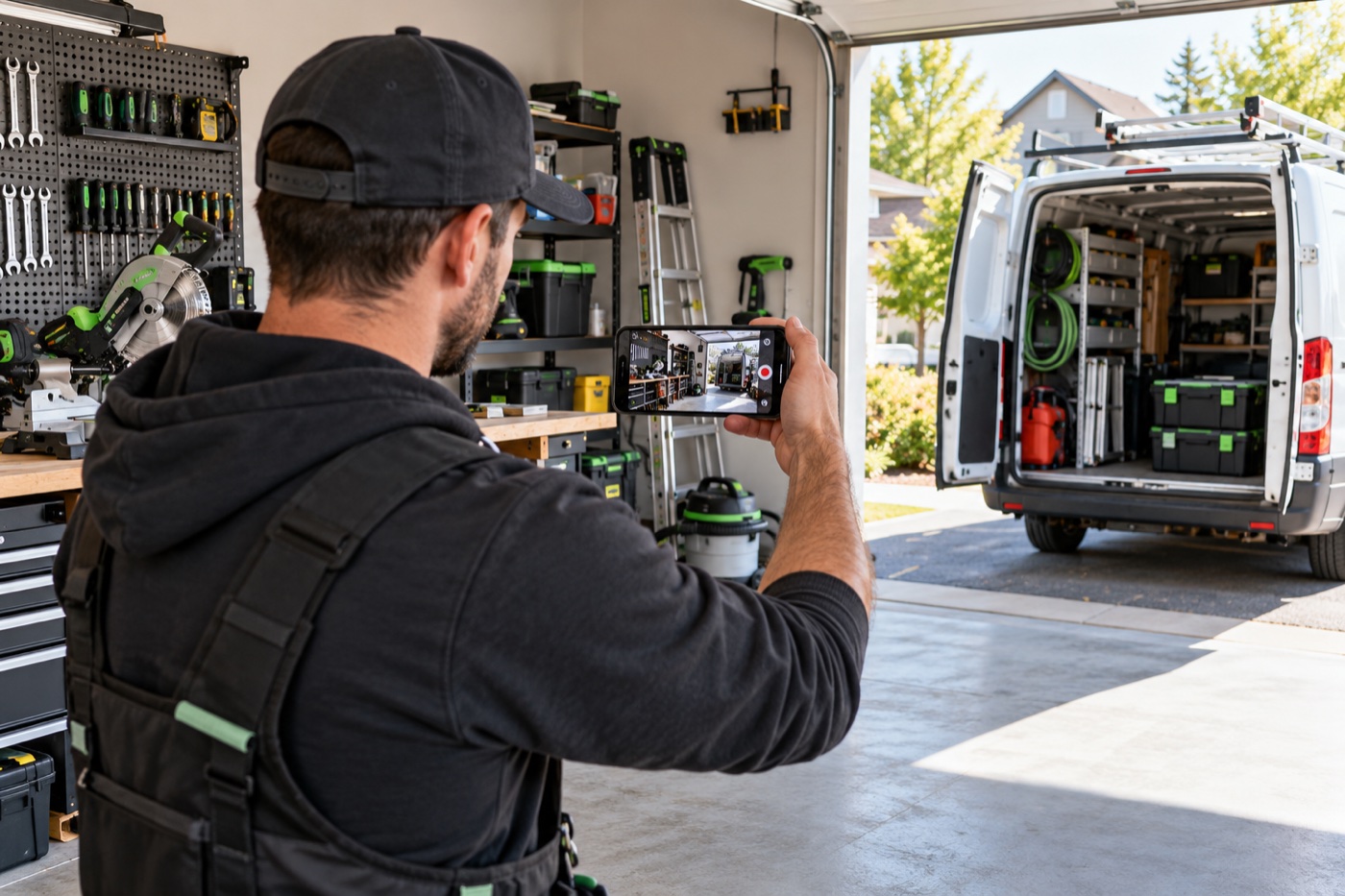
If Google offers video verification, plan the recording before you start. Google requires one continuous, unedited mobile video of at least 30 seconds. The video should establish three things: the business location, proof that the business exists, and proof that you manage it.
For a storefront or hybrid business, show street signs or nearby landmarks, the permanent business sign, and access to an employee-only area or business system. For a service-area business, show location identifiers near the base, tools or equipment used for the work, and proof of management such as unlocking a work vehicle or showing a business document that matches the profile name. Avoid recording faces, banking information, tax numbers, identification numbers, or other private data.
Google says video review can take up to five business days. If rejected, record a new video with the missing evidence.
What to do: Make a shot list before recording: location evidence, business identity, work equipment, and management access. Keep sensitive information out of frame.
Step 7: Complete the Profile After Verification
Verification proves that you are authorized to manage the profile. It is not the end of the setup.
Complete the information customers use to make a decision:
- Normal and special business hours
- Services, products, or menu information where available
- A clear business description
- Accessibility and other accurate attributes
- Real photos of the location, team, work, equipment, or products
- Website, appointment, reservation, or quote links
Trust signals should match the industry. Regulated professionals should show accurate credentials. Contractors should show real work, relevant insurance or licensing information, and service coverage. Restaurants should use current menu and location photography. Never claim credentials that cannot be verified.
Google advises businesses to keep information complete and accurate. Its published local ranking guidance says local results are mainly based on relevance, distance, and prominence. You cannot request or pay Google for a better organic local ranking.
What to do: Complete every relevant field, then compare the profile with the public website for inconsistencies.
Step 8: Check the Public Listing on Mobile and Desktop
Once the profile is verified and visible, inspect it as a customer would. Search the business name and city on a desktop browser, then check it in Google Maps on a phone. Confirm the name, map pin, address or hidden-address setup, service area, phone number, website, hours, photos, and primary category.
Do not assume the owner view matches the public view. Google may also receive updates from users and other sources, so continue monitoring the live listing.
Test the action that matters most: phone, quote form, booking page, or storefront directions. For bilingual audiences, confirm that the website path is understandable in English and French.
What to do: Capture a dated screenshot for your records and schedule a monthly profile review. For ongoing improvement, read our guides to local SEO and ranking higher on Google Maps.
Ottawa Google Maps Setup Checklist
- Search for an existing profile before creating a new one
- Use a business-controlled Google account
- Enter the real-world business name
- Select the most specific accurate primary category
- Choose storefront, service-area, or hybrid correctly
- Hide a residential address when customers are not served there
- Add a direct phone number and the correct website
- Confirm any Ottawa licence, permit, zoning, or professional requirements
- Prepare evidence before starting verification
- Complete hours, services, description, attributes, and photos
- Test calls, bookings, forms, directions, and the public profile
- Record ownership and manager access for future continuity
Frequently Asked Questions
Is it free to put my business on Google Maps?
Yes. Google says eligible businesses can add or claim a Business Profile at no charge. You may still choose to pay for photography, website work, profile management, local SEO, or advertising, but creating and managing the eligible listing itself is free.
Can I use my home address for an Ottawa service business?
Google can use the real base address for verification, but if customers do not visit that address, you should configure the profile as a service-area business and hide the address from the public. You should also check Ottawa zoning and licensing rules that apply to the real operation.
What if someone else already controls my listing?
Use Google's ownership-request process rather than creating a duplicate. For a storefront or hybrid profile, submit the request from the existing listing or business.google.com/add. Service-area ownership cases may require contacting Google support.
How long does Google Business Profile verification take?
The timing depends on the verification method and whether Google requires additional review. Google states that video verification review can take up to five business days. Do not promise a fixed completion date to customers or launch a time-sensitive campaign before verification is confirmed.
Does verification guarantee that I will rank at the top of Google Maps?
No. Verification confirms management authority and allows the profile to be managed. Google says local visibility is mainly determined by relevance, distance, and prominence. Complete information, customer reviews, website quality, and local authority can support performance, but no legitimate provider can guarantee the top position.
Do I need a website to create a Google Business Profile?
A website is not required for every eligible profile, but it gives customers a place to understand services, credentials, locations, and next steps. It also helps Google evaluate information associated with the business. The website should be accurate, mobile-friendly, and aligned with the profile.
Get the Setup Right Before You Try to Rank
A strong Google Maps presence begins with accurate ownership, the correct business type, a compliant address or service area, and successful verification. Optimization cannot repair a profile that was built on the wrong foundation.
Ottawa Web Genius helps Ottawa businesses connect their Google Business Profile, website, local SEO, and conversion path into one practical system. If you want support setting up or improving your listing, explore our SEO services or pricing options.